Use Canva for event images
Canva is super helpful for simple graphic creation. You can sign up for a free account and start creating. Learn how to create an event image in Canva, upload it in Engage, and have it display perfectly on your event pages every time.
Create event image in Canva
- Sign up for a free Canva account. (Note: SCORE Marketing HQ is working on getting all chapters Canva accounts….coming soon)
- Get the event image template.
- Upload the image you would like to use or use an image from the Canva library.
- Select image from uploads and add to design template. Scale the image to fit by dragging the image from any corner.
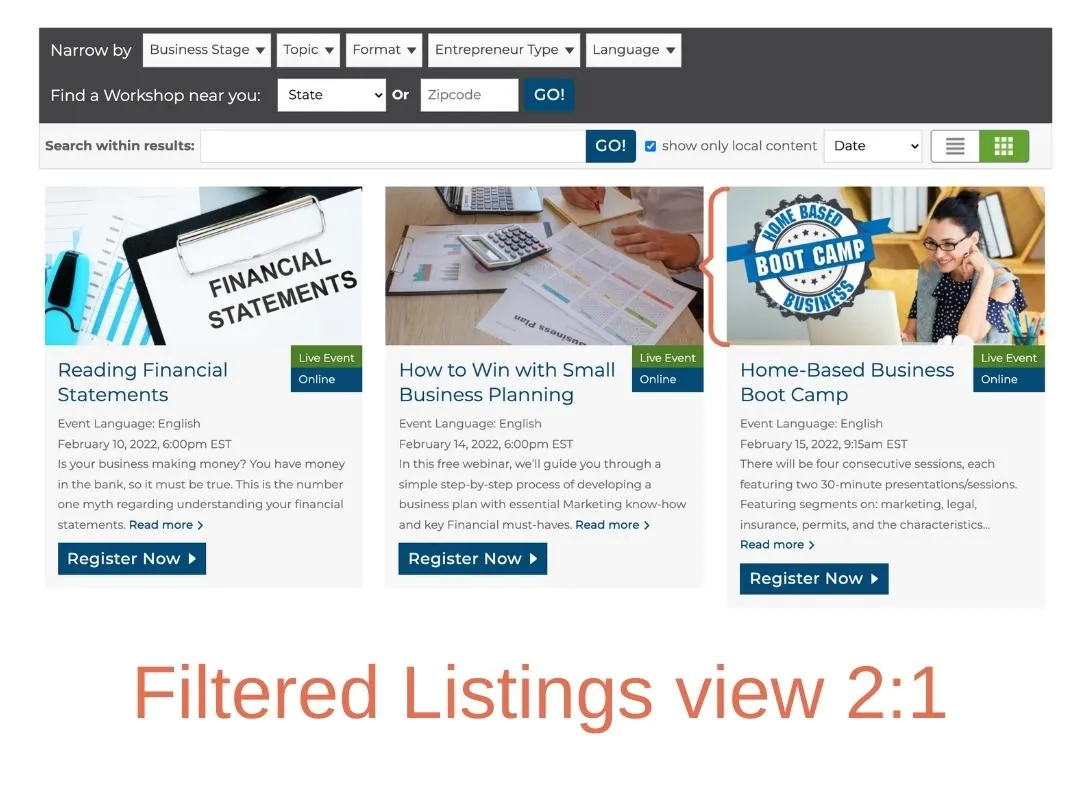
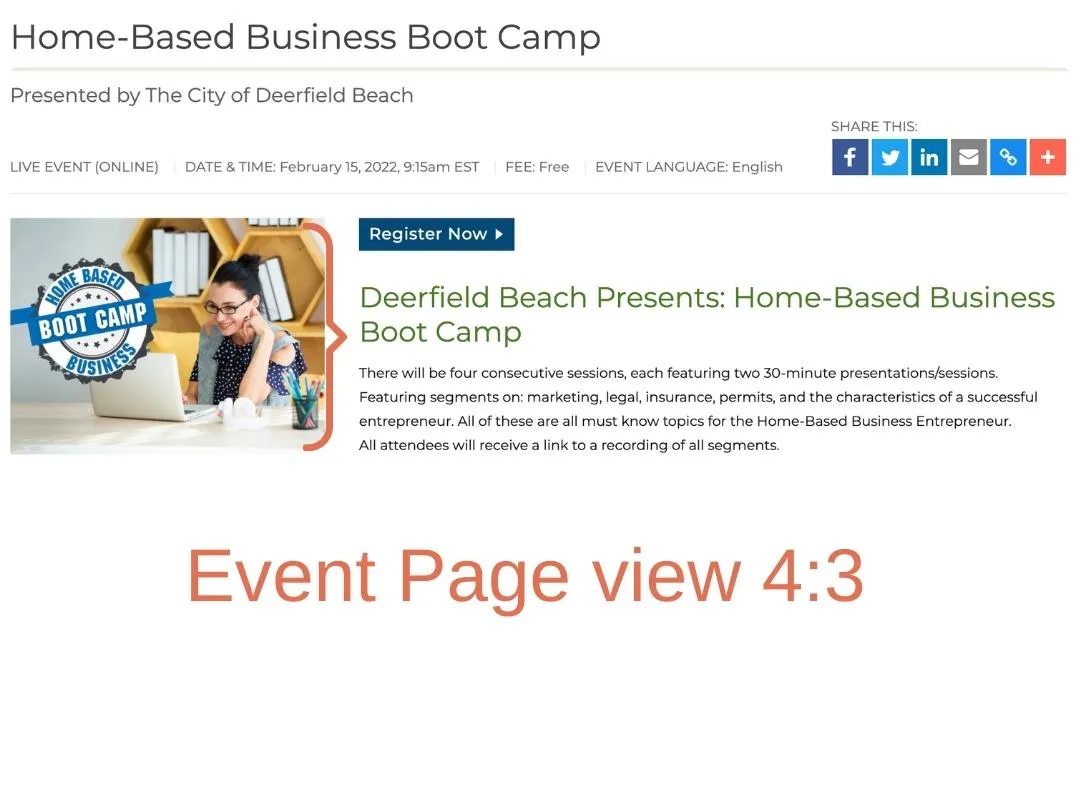
- Note the template guides. The whole image is a 4:3 ratio, 1080 x 810 px. This is the image you will upload to your event in Engage and is the image size displayed on your event page. The system will automatically crop this image to at 2:1 ratio, 1080 x 540 px which is the size displayed in filtered listings – Take a Workshop page, Upcoming Events content band or Filtered Events Listing content band.
- Delete the template guides.
- Save the image.
Get the Canva event image template
Example of how the event image displays on a chapter website
At the full 4:3 ratio on the event page itself:
And automatically cropped to 2:1 in filtered listings: