ClickUp Dashboards: Your Ecropolis Client Portal!
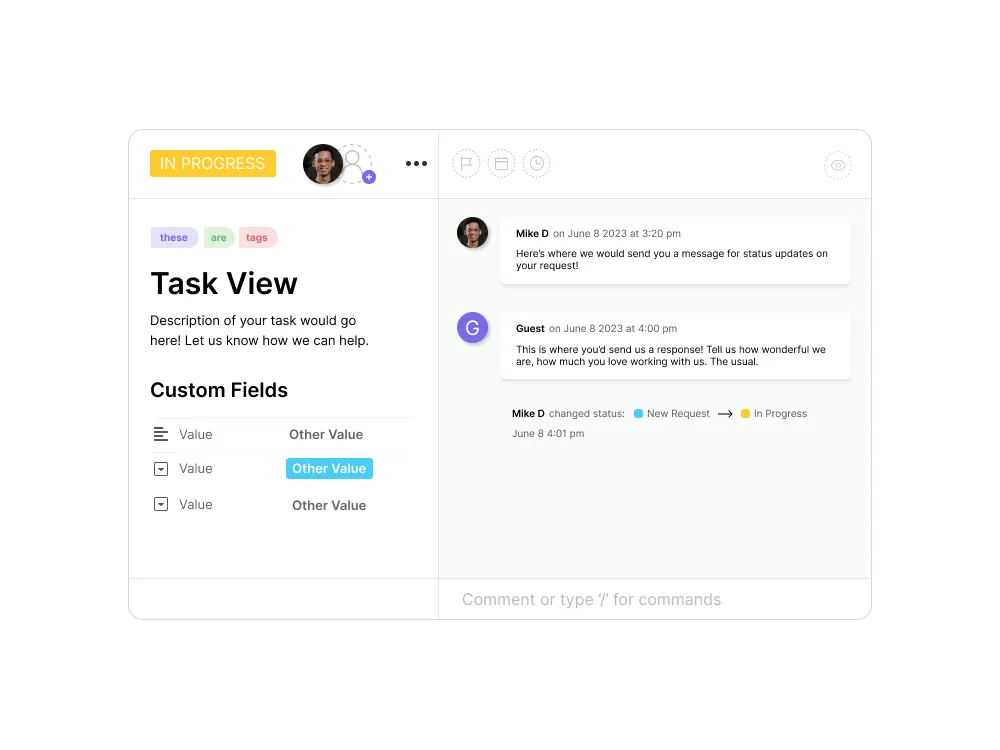
What is a Clickup Dashboard? In the world of project management, a dashboard is a centralized space where you can see, track, and analyze information related to your projects. ClickUp Dashboard does exactly that, and more! In this instance when we talk about dashboards, we are defining it as a Client Portal! ClickUp Dashboard is an overview of your Tickets and Resources customized by the Ecropolis Team. Think of it as your command center, where you can see all the relevant information in one glance, like ticket statuses, timelines, ticket forms, and related resources. By utilizing our dashboard, you will be able to track and manage all your tickets in one spot, as well as for us to tailor it to your specific needs.
How to Access Clickup Dashboard
Sign in to your ClickUp account:
The first step is to sign in to your ClickUp account. If you don’t have one, you can sign up for FREE at ClickUp’s website. Feel free to watch our ‘How to Sign Up on Clickup‘ Tutorial Video by clicking here.
After you’ve created your Clickup account, please send the email used to signup to the Ecropolis team, we’ll get your account linked up to your designated Ecropolis Dashboard on our end! (Preferably email sent via Ticket submission thru our web form). You will receive a pop-up inside Clickup to join our Workspace, and by clicking Accept/Yes, this will link the dashboard to your Clickup account on your end!
Locate the Dashboard feature:
Once you’re logged in, you’ll be taken to your Workspace. From there, you can find the Dashboard option in the left sidebar.
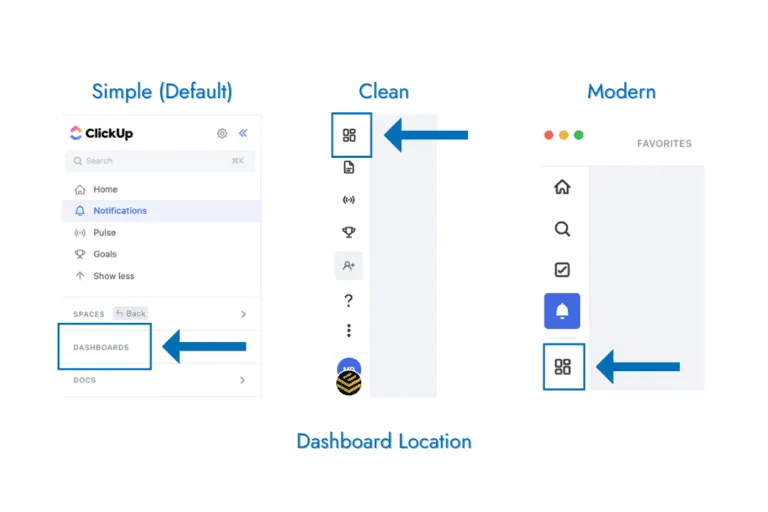
- If you’re using the Default (Simple) Layout size & Style, the ‘Dashboard’ button will be found on the left sidebar under the ‘Spaces’ button.
- If you’ve selected the ‘Clean’ Layout size & Style, the ‘Dashboard’ button will be found on the bottom left as an icon with 4 squares.
- If you’ve selected the ‘Modern’ Layout size & Style, the ‘Dashboard’ button will be found underneath the Bell icon as an icon with 4 small squares.
Feel free to watch our ‘How to Access Your Client Portal Dashboard on ClickUp‘ Tutorial video by clicking here!
Please note that ticket submissions need to be submitted via our web form and Ticket responses will be in email format. And that’s it! You’re now ready to collaborate with our team all in one place!